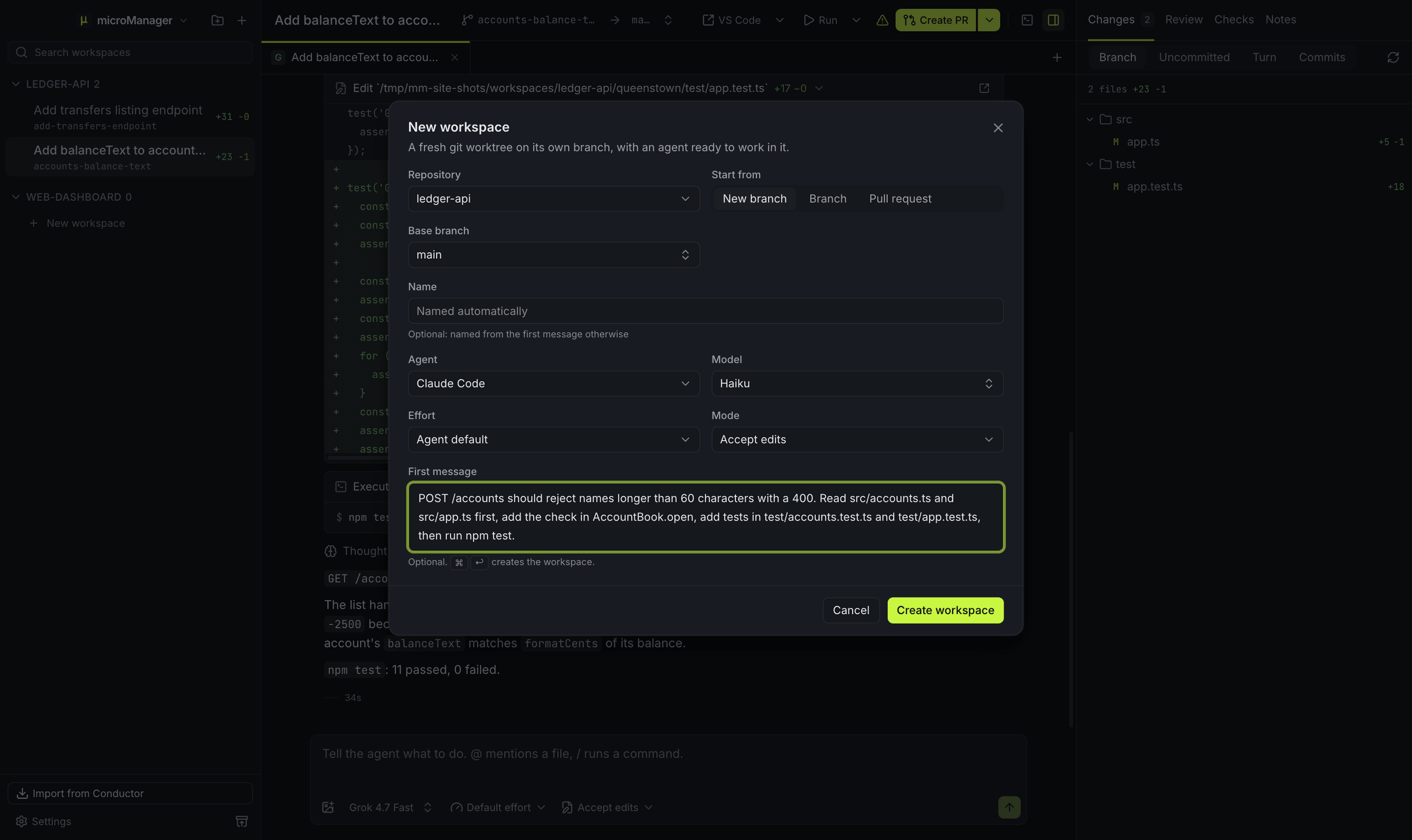
What happens when I create a workspace?
When you press ⌘N (Ctrl+N on Windows and Linux) and pick a repository, a base branch and an agent, microManager:
- Picks a name. It chooses a city from a bundled list of about 400 world cities that no other workspace or branch in the repository uses, such as
lisbon. The branch is<prefix>/lisbon, where the prefix comes from Settings → General → Branch prefix: your GitHub username (looked up once withgh api user), a custom prefix, or none. - Creates the worktree. It fetches the base branch from the remote (giving up after 30 seconds, so it still works offline) and runs
git worktree add -b <branch> <folder> <remote>/<base>. If the remote has no such branch, it starts from your local one. The new branch has no upstream until it is pushed. - Adds a
.context/folder to the worktree and lists it in the repository’s git exclude file (.git/info/exclude), so notes and screenshots shared between agents are never committed. - Copies your ignored files, such as
.env, from the repository’s main checkout. See files to copy. - Reserves ten ports: the lowest multiple of 10 from 51000 up that no other active workspace uses. The first one is in
MICROMANAGER_PORT(andCONDUCTOR_PORT). See environment variables. - Runs your setup script in a Setup terminal you can watch. The workspace is ready as soon as the worktree exists, so agents can start while setup is still running. While it runs, and if it fails, a bar above the chat says so, with Show output; its log is kept, so you can read it after a restart.
- Opens the first chat with the agent and model you picked, and sends your first message if you wrote one.
To work on a branch that already exists, or on an open pull request, choose Branch or Pull request under Start from in the same dialog, or press ⌘⇧N (Ctrl+Shift+N). The worktree then checks that branch out instead of making a new one: a branch only on the remote is checked out tracking it, and a pull request’s branch comes through gh pr checkout, with the workspace named after the pull request and targeting the branch it merges into.
Where do workspaces live on disk?
By default in ~/micromanager/workspaces/<repository>/<city>, inside your home folder on every system. Change the folder in Settings → General → Workspaces folder; new workspaces go to the new place. Workspaces imported from Conductor stay exactly where they already are, and nothing is moved.
How does automatic naming work?
After you send the first message in a workspace’s first chat, microManager can give the workspace a readable name and its branch a matching one, such as “Add CSV export” on <prefix>/add-csv-export. It does this only when:
- Name workspaces from the first message is on in Settings → General (it is by default),
- the branch still has its placeholder city name, and
- the branch has no upstream, is not on the remote and has no open pull request.
A name you typed yourself, in the New workspace dialog or later, is kept; only the branch is renamed then.
It asks Claude Code for a name in one-shot mode with the Haiku model (giving up after 20 seconds) when Claude Code is available, whichever agent the chat runs, and otherwise derives one from your message on your computer. The branch is renamed with git branch -m. A branch that has been pushed or has an open pull request is never renamed. You can rename the workspace from the workspace header at any time, and its branch there too until it is pushed.
What do the sidebar’s marks mean?
Each workspace in the sidebar shows:
- Activity: a spinner while the workspace is being set up or an agent is working, a mark when an agent needs your answer, an error mark, a dot for unread replies, or a check once the workspace is Done or its pull request is merged.
- Branch, diff size (lines added and removed) and a pull request badge: its number, colored by its checks while it is open, or Draft, Merged or Closed.
Right-click a workspace to pin it, rename it, mark it read, copy its branch name, archive it or set your own status: Backlog, In progress, In review or Done. Pinned workspaces stay at the top; the rest are sorted by most recent activity. ⌘1 to ⌘9 (Ctrl+1 to Ctrl+9 on Windows and Linux) jump to the first nine.
What is the target branch?
The branch the workspace will merge into, shown as → target in the header. Diffs compare against it and pull requests are opened against it. It starts as the repository’s default branch; pick another from the header at any time.
What does archiving do?
Archiving a finished workspace:
- stops the workspace’s agents and terminals,
- runs the archive script, if there is one (up to 2 minutes; one from the repository’s own files only once you trust it),
- saves the uncommitted work, untracked and staged files included, as a hidden git commit under
refs/micromanager/archived/<workspace id>, - copies the
.context/folder into microManager’s own data folder, - records the commit the branch points to,
- removes the worktree folder with
git worktree remove --force, and - deletes the workspace’s checkpoints.
The branch is kept, and so are your uncommitted work and the notes in .context/. Other files git ignores, such as node_modules or .env, are removed with the folder; restoring copies your files to copy again. With Archive after merging on in Settings → General, a workspace is archived as soon as you merge its pull request from microManager.
How do I restore or delete an archived workspace?
Restore recreates the worktree for the same branch at the same path (from the recorded commit if the branch was deleted meanwhile), puts the saved uncommitted work and the .context/ folder back, copies your ignored files again and runs the setup script again. If the branch gained commits that change the same lines while the workspace was archived, the saved changes are kept aside instead of being forced over them, and a bar under the workspace’s tabs lists their files: Bring back puts them in the worktree, with conflict markers where both changed the same lines, and Discard… deletes them.
Delete is available only for archived workspaces: it deletes the branch if it is merged into the target branch, or its pull request was merged and every local commit was pushed (a squash merge leaves no other trace), or when you confirm that you want to force it, and drops the saved work.
What is the .context folder for?
.context/ sits inside every workspace and is ignored by git. Agents are told about it, so it is a good place for plans, notes and screenshots that several agents, or several tabs, should share without committing them.