Move from Conductor to microManager
Install microManager, choose Import from Conductor, review the preview and import: your repositories, workspaces and chats come over in one step, every worktree stays where it is, and your .conductor/settings.toml scripts keep working with the CONDUCTOR_* variables they read. Only cloud workspaces need moving to your Mac first.
Updated
How do I move over?
-
Move cloud workspaces to your Mac
If you used Conductor Cloud, right-click each cloud workspace in Conductor and choose Transfer to local, or export your data from Settings → Account → Export data. Transfers are safest before Conductor Cloud is read-only, from 13 November 2026. Local workspaces need nothing.
-
Install microManager
On the Mac where you use Conductor, download the DMG from https://micromanager.win/download/mac (Apple Silicon) or https://micromanager.win/download/mac-intel and drag microManager to Applications, or run curl -fsSL https://micromanager.win/install.sh | sh in Terminal.
curl -fsSL https://micromanager.win/install.sh | sh -
Check that your agents are found
On first launch microManager lists the agent CLIs it found on your login shell PATH (Claude Code, Codex, Grok Build, OpenCode, Gemini CLI) and their versions. Executable paths you set in Conductor are imported in the next step.
-
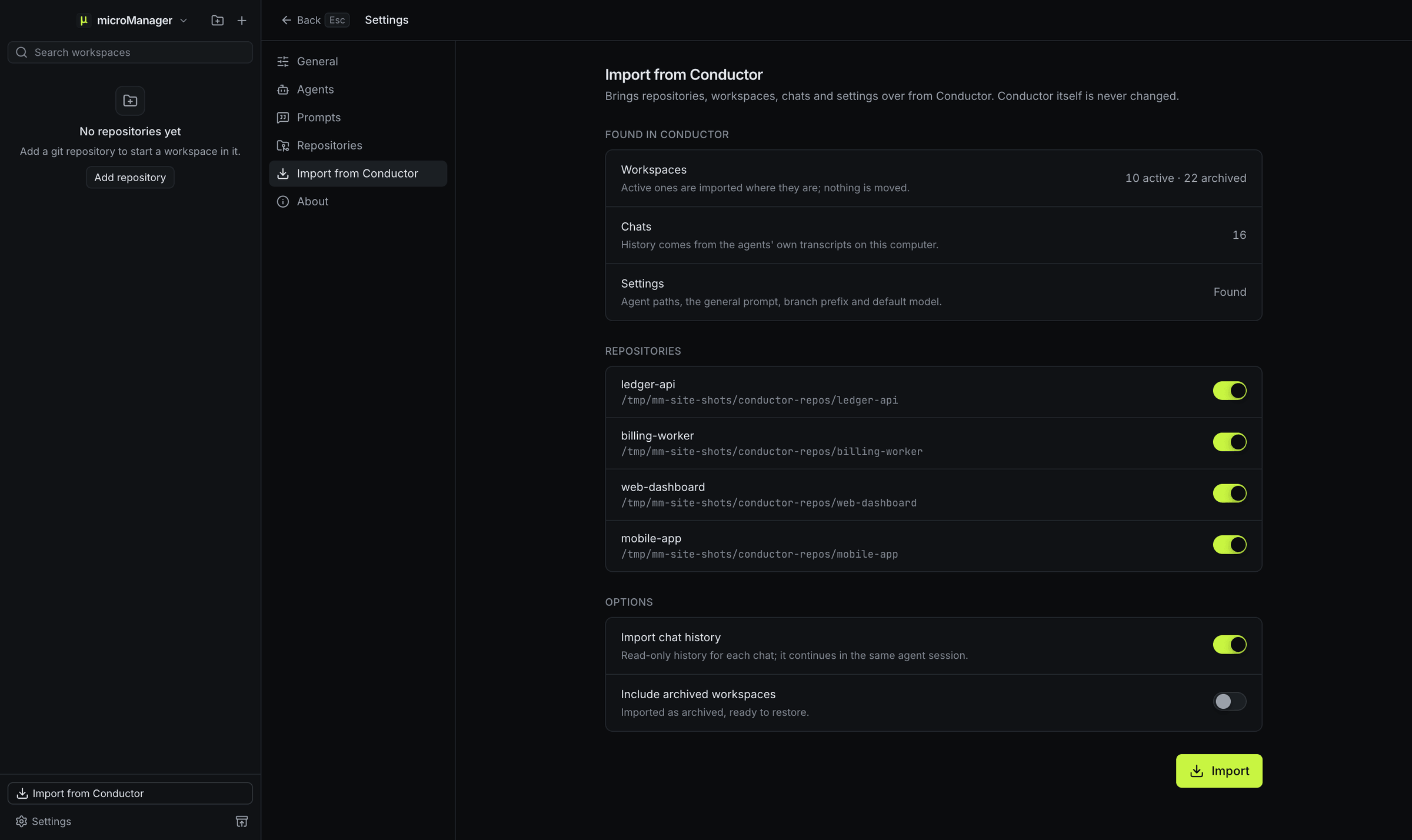
Choose Import from Conductor and review the preview
microManager reads Conductor’s local database read-only and shows your repositories (and whether each folder still exists), how many active and archived workspaces and chats it found, and whether it found your Conductor settings. Choose which repositories to bring, and whether to include archived workspaces (off by default) and chat history (on by default).
-
Import
Repositories, workspaces, chat tabs and settings are added to microManager. Each workspace keeps its existing worktree folder and branch, and nothing on disk is moved; the only file written is a .context/ line in a repository’s git exclude file, if it lacks one. Conductor’s data is never written to, and running the import again only adds what is missing.
-
Open a workspace and keep going
Open any imported workspace: its chats show their earlier messages, and your next message continues the same Claude Code or Codex session. Setup and run scripts from .conductor/settings.toml work as before, with CONDUCTOR_* variables set.
What carries over, and what does not?
| From Conductor | Carries over | Notes |
|---|---|---|
| Repositories | Yes | Name, folder, default branch and remote. Repositories hidden in Conductor, or whose folder is gone, are skipped. |
| Active workspaces | Yes | Same folder and branch, with name, target branch, status, pin and notes. Skipped if the folder no longer exists. |
| Archived workspaces | If you choose | Switch on “Include archived workspaces” in the preview; they come over archived, ready to restore. |
| Chat tabs | Yes | Visible tabs, with agent, model, effort level and permission mode. Chats with Cursor, which microManager does not run, are skipped. |
| Chat history | Claude Code and Codex | Read from the agents’ own transcript files, newest 2,000 events per chat; the next message resumes the same session. |
| Agent executable paths | Yes | Claude Code, Codex and OpenCode paths from ~/.conductor/settings.toml become the commands of those profiles. |
| Prompts, branch prefix, default model | Yes | From ~/.conductor/settings.toml: the general and action prompts, branch prefix, archive on merge, default model and effort levels, and whether tool approvals were off. Only settings still at microManager’s defaults are filled in. |
| .conductor/settings.toml, settings.local.toml, conductor.json | Read in place | Same keys, read directly from your repository. Nothing to convert. |
| .worktreeinclude and file_include_globs | Read in place | Ignored files are copied into new workspaces the same way. |
| CONDUCTOR_* environment variables | Yes | The ones Conductor gave local scripts, with the same meanings, alongside the MICROMANAGER_* names for scripts, terminals and agents. Each workspace gets a new block of ports; the cloud and API variables are not set. |
| MCP tool names | Same names | AskUserQuestion, GetWorkspaceDiff, DiffComment, GetDiffComments and GetTerminalOutput. |
| Conductor Cloud workspaces | No | Transfer them to local in Conductor first; then they import like any local workspace. |
| Account, billing, iPhone app | No | microManager has no account, no paid tier and no mobile app. |
Which environment variables match?
With Conductor-compatible environment on (the default), both names are set to the same value for every script, terminal and agent.
| Conductor name | microManager name | Value |
|---|---|---|
CONDUCTOR_WORKSPACE_NAME | MICROMANAGER_WORKSPACE_NAME | The workspace’s folder name, a city such as lisbon. It stays the same when you rename the workspace or its branch. |
CONDUCTOR_WORKSPACE_ID | MICROMANAGER_WORKSPACE_ID | The workspace’s unique id. |
CONDUCTOR_WORKSPACE_PATH | MICROMANAGER_WORKSPACE_PATH | Absolute path of the workspace’s git worktree. |
CONDUCTOR_ROOT_PATH | MICROMANAGER_ROOT_PATH | Absolute path of the repository’s main checkout, where files to copy come from. |
CONDUCTOR_DEFAULT_BRANCH | MICROMANAGER_DEFAULT_BRANCH | The repository’s default branch. |
CONDUCTOR_PORT | MICROMANAGER_PORT | The first of ten ports reserved for this workspace (PORT to PORT+9). Each workspace gets the lowest free multiple of 10 from 51000 up. |
CONDUCTOR_IS_LOCAL | MICROMANAGER_IS_LOCAL | Always 1: workspaces run on your own computer. |
Should I rename my settings files?
You do not have to. .conductor/settings.toml keeps working. If you want
microManager-only settings, add .micromanager/settings.toml: it takes precedence over the Conductor
file, key by key, so you can move one script at a time. The repository settings
page lists the full order.
How do I save cloud workspaces?
Transfer them to local, or download them with Export data. Transfers are safest before Conductor Cloud is read-only, from 13 November 2026, and Conductor deletes cloud data from 20 November 2026. How to export your Conductor workspaces covers both, plus saving local worktrees with git.
What if I am moving to Windows or Linux?
The import runs on the Mac, where Conductor’s data is. To move to a PC instead, push the branches you want to keep,
clone the repositories there and add them to microManager; your .conductor/settings.toml scripts and
CONDUCTOR_* variables work there too. See Conductor for Windows
and Conductor for Linux.
Can I keep Conductor installed while I try microManager?
Yes, and it is a good idea while the local Conductor app still works. Both apps can show the same workspaces because the import does not move anything. Just avoid running agents in the same worktree from both apps at the same time.
Questions about moving
Does importing change anything in Conductor?
No. microManager opens Conductor’s database read-only and never writes to it or to Conductor’s settings. Conductor keeps working exactly as before.
Are my worktrees moved or copied?
No. Each imported workspace points at the worktree folder Conductor created, on the same branch, with uncommitted work untouched.
Do I need to rewrite my setup scripts?
No. microManager reads the same settings files and sets the CONDUCTOR_* environment variables Conductor gave local scripts, such as CONDUCTOR_ROOT_PATH and CONDUCTOR_WORKSPACE_NAME, with the same meanings, next to its own MICROMANAGER_* names. Only CONDUCTOR_PORT changes, because each workspace gets a new block of ports.
Can I run the import more than once?
Yes. Records that were already imported are recognized and skipped, so a second run only adds new repositories, workspaces or chats.
What about chats with Grok or OpenCode?
They are imported as chats with the matching agent profile (the Grok profile for Grok models, OpenCode for the rest) so you can continue in the same workspace. Earlier messages are imported for Claude Code and Codex chats, which keep their own transcript files.
Start the move now
Free, no account, for macOS, Windows and Linux. It runs the agent CLIs you already have installed and signed in.
curl -fsSL https://micromanager.win/install.sh | sh That installs it on macOS and Linux. On Windows, paste this into PowerShell:
irm https://micromanager.win/install.ps1 | iex