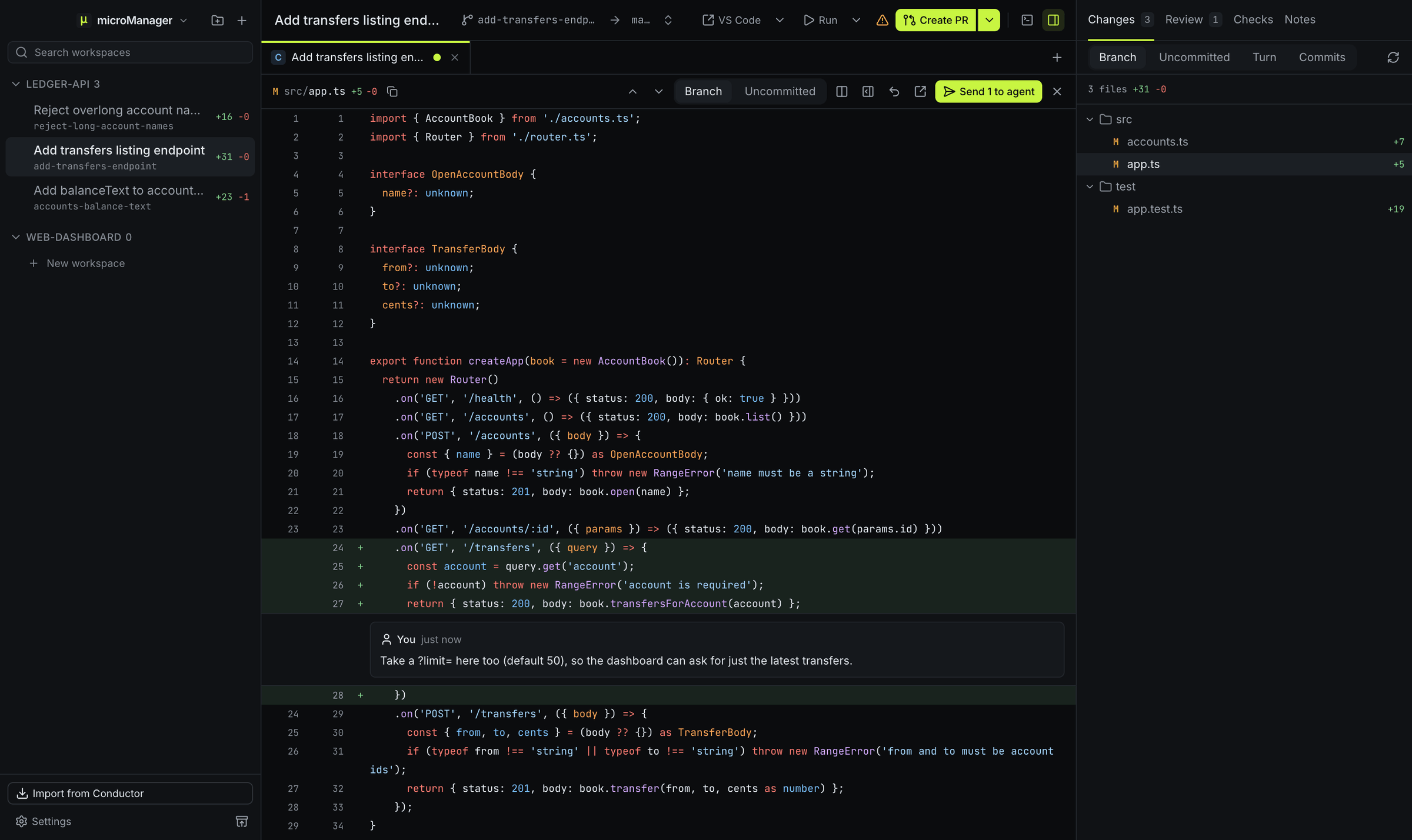
What does the Changes panel show?
Every file the workspace changed, as a tree, each with its status (added, modified, deleted, renamed) and its added and removed line counts. A toggle switches between two views:
| View | Compares | Good for |
|---|---|---|
| Branch | The merge base with the target branch, against the working tree, plus untracked files | Reviewing the whole task before a pull request |
| Uncommitted | The last commit against the working tree | Checking what the agent did in the last turn |
⌘⇧E (Ctrl+Shift+E on Windows and Linux) shows or hides the panel.
How do I read a diff?
Click a file to open its diff over the chat, or beside it. Choose unified or split view; both have syntax highlighting.
How do comments get back to the agent?
Click a line number to comment on that line, or Shift-click or drag across line numbers to comment on a range. Comments collect in the Review panel. When you are done, Send to agent (it counts them: Send 2 to agent) sends every open comment to the chat tab on screen as one message, each with its file and lines, and the agent works through them. Sent comments are marked Sent, and you can resolve them once fixed, or reopen them.
Can agents leave comments too?
Yes. Through microManager’s MCP server, an agent can call GetWorkspaceDiff to read the workspace’s changes, DiffComment to leave comments on specific lines and GetDiffComments to read the comments not resolved yet, so “address my comments” works without sending them. Ask one agent to review what another wrote, and its findings land in the same Review panel as yours. See MCP tools.
What if I do not like what the agent did?
Roll the workspace back to before the message that caused it with a checkpoint, or tell the agent what to change. When the diff looks right, open a pull request.